Object Remover
Upload a photo and run the object remover preset: the Studio erases the distraction and rebuilds the area so perspective, lighting, and texture keep matching.
Run it on your own image
Credit balance: —
Composing…
Before and after
A real example of the transformation: drag the divider, or use the buttons, to compare the input and the result.
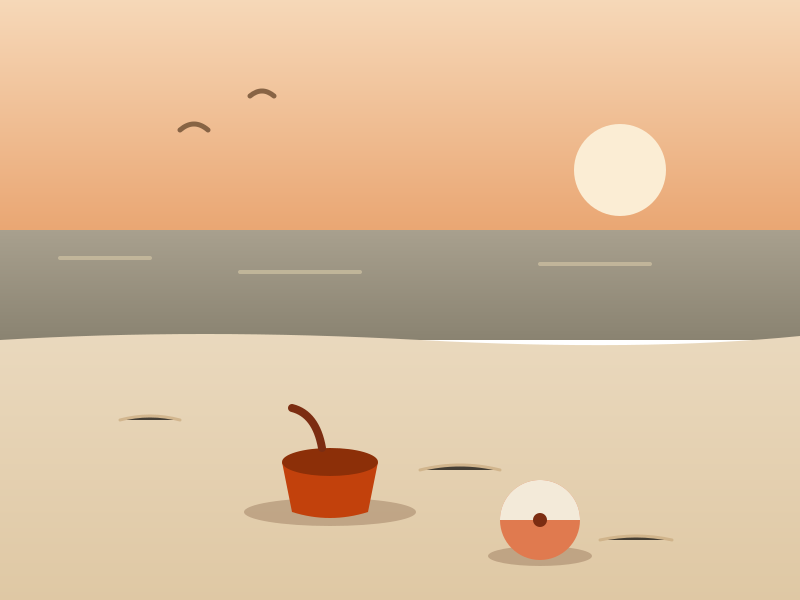
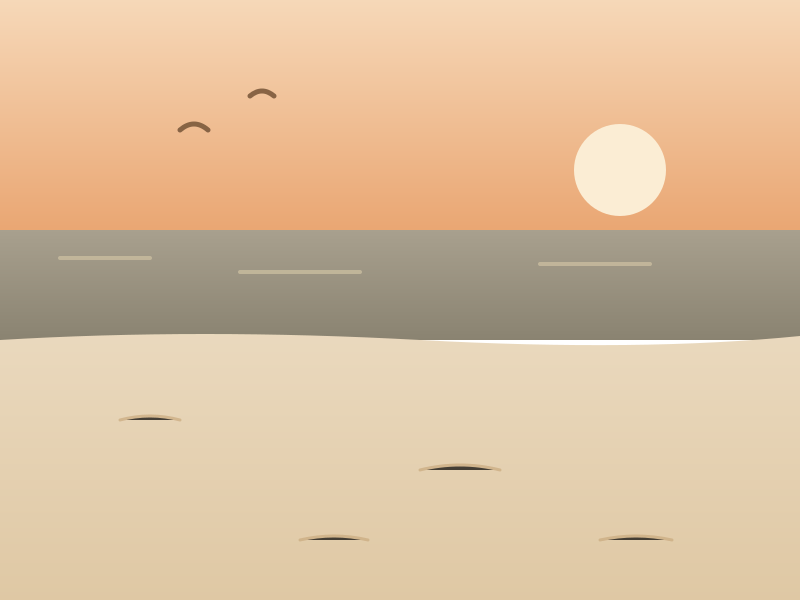 BeforeAfter
How it works
Upload the photo with the object you want gone.
Run the fixed object remover preset — the Credit price shows on the button before you spend.
Compare before and after, then download the cleaned photo.
Frequently asked questions
- What does the object remover do to my image?
- It runs one Studio Edit job with a fixed instruction: the unwanted object is removed and the area is rebuilt to match the surrounding perspective, lighting, and texture. Your original upload is never modified.
- Can it remove large objects?
- It handles most objects, but very large ones that cover half the scene leave the model little context to rebuild from. Try one run and judge the comparison before spending more.
- Do I need to mask the object first?
- No. The preset asks the model to find and remove the distraction itself. You only upload the photo and press Apply.
Pair the tool with tested prompts
The poster prompt gallery is where every preset comes from. Browse the full collection on the Hub, or start from one of these proven cases.
Poster Prompts